---
title: How to add a Defect labour item to a work order
description: How to add a labour line or repair line to a work order or repair order using the Defects tab (which contains defects found by drivers and from inspections)
---
[Skip to content](https://knowledge.brightorder.com/how-to-add-a-defect-labour-item-to-a-work-order#main-content)
English
Show submenu for translations
[More support](https://knowledge.brightorder.com/kb-tickets/new?hsLang=en) [Customer portal](https://help.brightorder.com/tickets?hsLang=en)
[](https://knowledge.brightorder.com?hsLang=en)
Open main navigation
Close main navigation
- English
Show submenu for translations
- [More support](https://knowledge.brightorder.com/kb-tickets/new)
- [Customer portal](https://help.brightorder.com/tickets)
- Go to www.brightorder.com
Go to www.brightorder.com
How can we help you?
- There are no suggestions because the search field is empty.
1. [BrightOrder Knowledge Base](https://knowledge.brightorder.com/?hsLang=en)
2. [emdecs one](https://knowledge.brightorder.com/emdecs-one?hsLang=en)
3. [Maintenance](https://knowledge.brightorder.com/emdecs-one?hsLang=en#maintenance)
# How to add a Defect labour item to a work order
## Employees may report a defect on an asset after an inspection or even just because they've noticed something wrong during operation. These get lined up for the next time that asset has a work order created for it and these can be added as labour lines as repairs are done.
### Who is this article for? Shop Managers or Technicians using **emdecs one**'s web client.
All labour on a work order is added using the **Add Labour** button on the main work order screen:
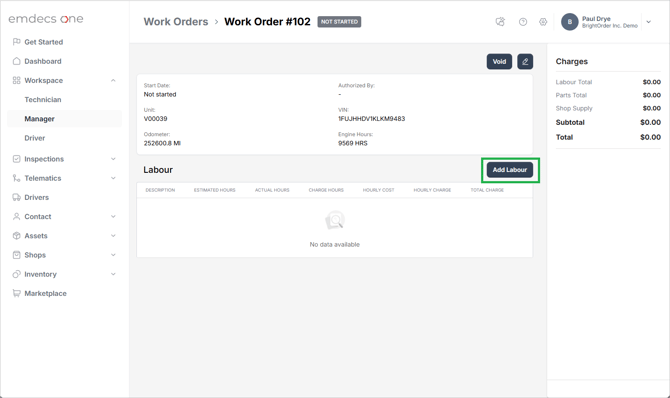
If you click it you'll see either two or three possibilities for how to add a labour item: MOTOR (which may or may not appear depending on your setup), VMRS, and Defect. Select the **Defect** option and **emdecsone** will show you all defects reported that have not been fixed yet:
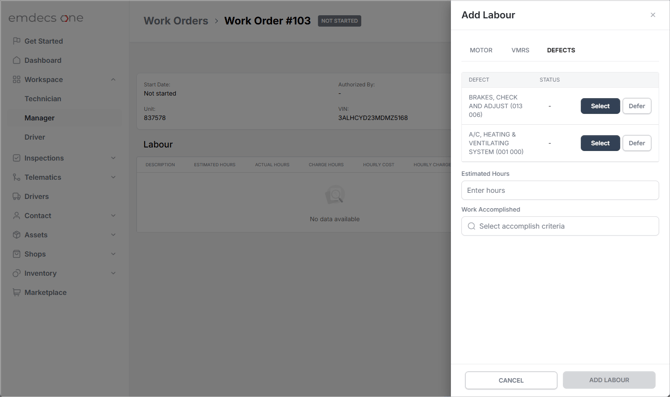
You have two options for dealing with a defect:
- Clicking the **Defer** button tells **emdecs one** that you've looked into the defect and decided that it does not need to be fixed now, or else you've been told to do so by someone else. This puts the defect away for now but makes it show back up again on the next work order as many times as necessary until someone fixes it.
- More commonly you'll want to **Select** the work. When you do so, **emdecs one** will need you to fill in two items:
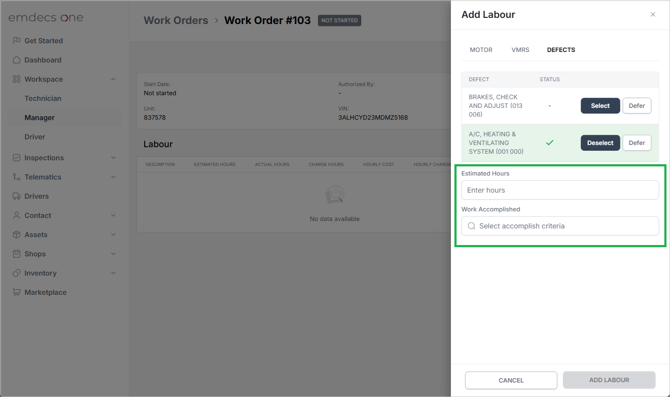
- **Estimated Hours**: How long you think it will take to fix the problem
- **Work Accomplished**: What you think you'll need to do to fix it (e.g., *Replace*, *Clean*, or *Replace Fluids*, among others).
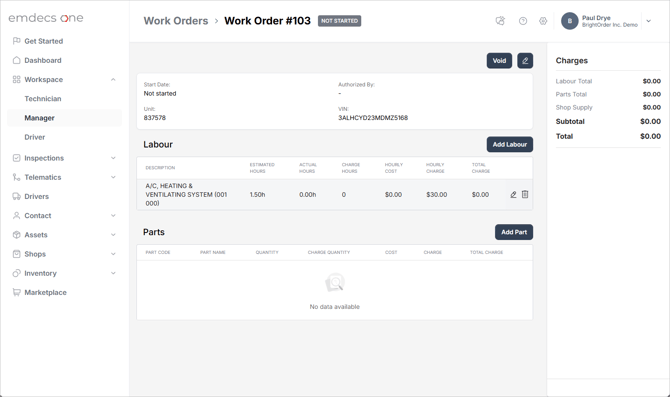
Once you've filled those in, the **Add Labour** button will activate. Click it and the defect will be added to your work order like this:
- [EMDECS](https://knowledge.brightorder.com/emdecs?hsLang=en#main-content)
- [Getting Started](https://knowledge.brightorder.com/emdecs?hsLang=en#getting-started)
- [How-To Guides](https://knowledge.brightorder.com/emdecs?hsLang=en#how-to-guides)
- [Troubleshooting](https://knowledge.brightorder.com/emdecs?hsLang=en#troubleshooting)
- [Account & User Management](https://knowledge.brightorder.com/emdecs?hsLang=en#account-user-management)
- [Integrations](https://knowledge.brightorder.com/emdecs?hsLang=en#integrations)
- [Release Notes](https://knowledge.brightorder.com/emdecs?hsLang=en#release-notes)
- [emdecs one](https://knowledge.brightorder.com/emdecs-one?hsLang=en#main-content)
- [Maintenance](https://knowledge.brightorder.com/emdecs-one?hsLang=en#maintenance)
- [emdecs one ELD](https://knowledge.brightorder.com/emdecs-one-eld?hsLang=en#main-content)
- [Troubleshooting](https://knowledge.brightorder.com/emdecs-one-eld?hsLang=en#troubleshooting)
- [How-To Guides](https://knowledge.brightorder.com/emdecs-one-eld?hsLang=en#how-to-guides)
- [Getting Started](https://knowledge.brightorder.com/emdecs-one-eld?hsLang=en#getting-started)
- [Account & User Management](https://knowledge.brightorder.com/emdecs-one-eld?hsLang=en#account-user-management)
- [Tracking](https://knowledge.brightorder.com/tracking?hsLang=en#main-content)
- [Getting Started](https://knowledge.brightorder.com/tracking?hsLang=en#getting-started)
- [Troubleshooting](https://knowledge.brightorder.com/tracking?hsLang=en#troubleshooting)
- [How-To Guides](https://knowledge.brightorder.com/tracking?hsLang=en#how-to-guides)
- [Account & User Management](https://knowledge.brightorder.com/tracking?hsLang=en#account-user-management)
- [Integrations](https://knowledge.brightorder.com/tracking?hsLang=en#integrations)
- [ELD](https://knowledge.brightorder.com/eld?hsLang=en#main-content)
- [Release Notes](https://knowledge.brightorder.com/eld?hsLang=en#release-notes)
- [Legacy Device Troubleshooting](https://knowledge.brightorder.com/eld?hsLang=en#legacy-device-troubleshooting)
- [How-To Guides (Legacy Devices)](https://knowledge.brightorder.com/eld?hsLang=en#how-to-guides-legacy-devices)
- [Dashcam](https://knowledge.brightorder.com/dashcam?hsLang=en#main-content)
- [How-To Guides](https://knowledge.brightorder.com/dashcam?hsLang=en#how-to-guides)
- [General](https://knowledge.brightorder.com/general?hsLang=en#main-content)
- [Contact Us](https://knowledge.brightorder.com/general?hsLang=en#contact-us)
- [Getting started](https://knowledge.brightorder.com/getting-started?hsLang=en)
[](https://knowledge.brightorder.com/?hsLang=en)
www.brightorder.com Help Center
[mailto:email@email.com](mailto:email@email.com)
Copyright © 2026, BrightOrder Inc.