---
title: How to add a vendor
description: Anyone who will use EMDECS one in your organization needs to be invited to the system. EMDECS one will use your employees' name and role in your organization to decide which screens they will be able to access and what will show on documents like work orders and invoices.
---
[Skip to content](https://knowledge.brightorder.com/how-to-create-a-vendor1#main-content)
English
Show submenu for translations
[More support](https://knowledge.brightorder.com/kb-tickets/new?hsLang=en) [Customer portal](https://help.brightorder.com/tickets?hsLang=en)
[](https://knowledge.brightorder.com?hsLang=en)
Open main navigation
Close main navigation
- English
Show submenu for translations
- [More support](https://knowledge.brightorder.com/kb-tickets/new)
- [Customer portal](https://help.brightorder.com/tickets)
- Go to www.brightorder.com
Go to www.brightorder.com
How can we help you?
- There are no suggestions because the search field is empty.
1. [BrightOrder Knowledge Base](https://knowledge.brightorder.com/?hsLang=en)
2. [emdecs one](https://knowledge.brightorder.com/emdecs-one?hsLang=en)
3. [Maintenance](https://knowledge.brightorder.com/emdecs-one?hsLang=en#maintenance)
# How to add a vendor
## Vendors sell you products and services like parts. When you create a vendor emdecs one can track purchase orders and invoices from that vendor.
Who is this article for? Super Admins using **emdecs one**'s web client.
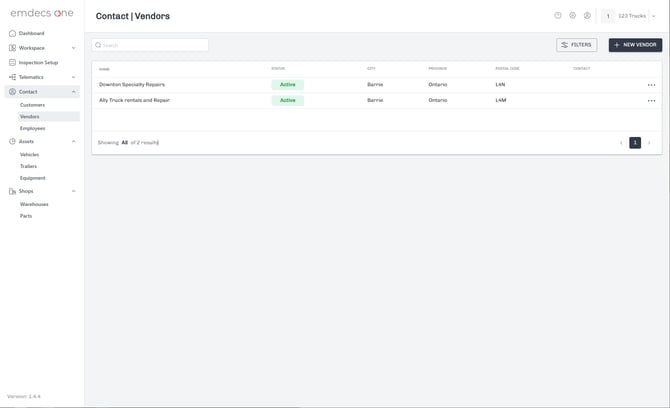
Begin by selecting the **Contact \> Vendors** option from the side menu bar. You'll then see the main Vendors screen, which will list all of the vendors currently in **emdecs one**:
******
Click the **New Vendor** button in the upper right and a blank form will open so you can enter the details about your new vendor:
***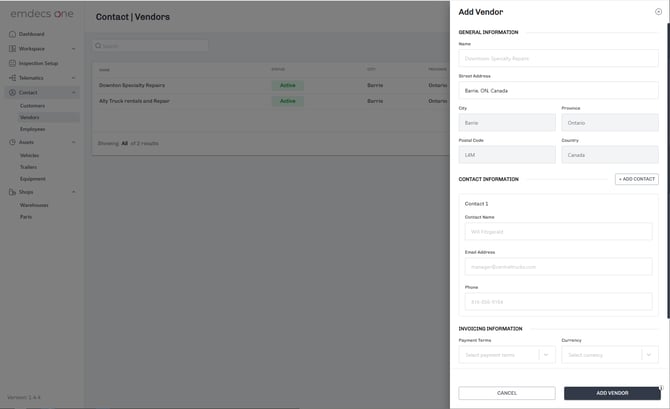***
You'll need to fill in these pieces of information:
- The vendor's name
- Their address. **emdecs one** has a built-in address look up, so as you type the vendor's street address it will show you possible matches for what you have typed. If you click one of the suggestions, **emdecs one** will auto-fill all of the address details for you.
- The currency in which the vendor charges you for their services. This is usually your local currency, but if your vendor is located in another country and uses their currency on invoices, you can set it here.
There's also several optional fields you can use to track other details if you like:
- Contact information. **emdecs one** lets you add one contact person right away, and if you click the Add Contact button you can continue to add more.
- Payment Terms. Leaving this blank will set this vendor to Payment Due on Delivery, but you can also select Net 30, Net 60, and so on if that is your agreement with the vendor.
- Discount Applied. If you receive a discount for paying within the payment terms, enter it here.
Click the **Add Vendor** button to save your new vendor. Then **emdecs one** will add it to the main Vendor list and then you will be able to select them when receiving an invoice from them.
- [EMDECS](https://knowledge.brightorder.com/emdecs?hsLang=en#main-content)
- [Getting Started](https://knowledge.brightorder.com/emdecs?hsLang=en#getting-started)
- [How-To Guides](https://knowledge.brightorder.com/emdecs?hsLang=en#how-to-guides)
- [Troubleshooting](https://knowledge.brightorder.com/emdecs?hsLang=en#troubleshooting)
- [Account & User Management](https://knowledge.brightorder.com/emdecs?hsLang=en#account-user-management)
- [Integrations](https://knowledge.brightorder.com/emdecs?hsLang=en#integrations)
- [Release Notes](https://knowledge.brightorder.com/emdecs?hsLang=en#release-notes)
- [emdecs one](https://knowledge.brightorder.com/emdecs-one?hsLang=en#main-content)
- [Maintenance](https://knowledge.brightorder.com/emdecs-one?hsLang=en#maintenance)
- [emdecs one ELD](https://knowledge.brightorder.com/emdecs-one-eld?hsLang=en#main-content)
- [Troubleshooting](https://knowledge.brightorder.com/emdecs-one-eld?hsLang=en#troubleshooting)
- [How-To Guides](https://knowledge.brightorder.com/emdecs-one-eld?hsLang=en#how-to-guides)
- [Getting Started](https://knowledge.brightorder.com/emdecs-one-eld?hsLang=en#getting-started)
- [Account & User Management](https://knowledge.brightorder.com/emdecs-one-eld?hsLang=en#account-user-management)
- [Tracking](https://knowledge.brightorder.com/tracking?hsLang=en#main-content)
- [Getting Started](https://knowledge.brightorder.com/tracking?hsLang=en#getting-started)
- [Troubleshooting](https://knowledge.brightorder.com/tracking?hsLang=en#troubleshooting)
- [How-To Guides](https://knowledge.brightorder.com/tracking?hsLang=en#how-to-guides)
- [Account & User Management](https://knowledge.brightorder.com/tracking?hsLang=en#account-user-management)
- [Integrations](https://knowledge.brightorder.com/tracking?hsLang=en#integrations)
- [ELD](https://knowledge.brightorder.com/eld?hsLang=en#main-content)
- [Release Notes](https://knowledge.brightorder.com/eld?hsLang=en#release-notes)
- [Legacy Device Troubleshooting](https://knowledge.brightorder.com/eld?hsLang=en#legacy-device-troubleshooting)
- [How-To Guides (Legacy Devices)](https://knowledge.brightorder.com/eld?hsLang=en#how-to-guides-legacy-devices)
- [Dashcam](https://knowledge.brightorder.com/dashcam?hsLang=en#main-content)
- [How-To Guides](https://knowledge.brightorder.com/dashcam?hsLang=en#how-to-guides)
- [General](https://knowledge.brightorder.com/general?hsLang=en#main-content)
- [Contact Us](https://knowledge.brightorder.com/general?hsLang=en#contact-us)
- [Getting started](https://knowledge.brightorder.com/getting-started?hsLang=en)
[](https://knowledge.brightorder.com/?hsLang=en)
www.brightorder.com Help Center
[mailto:email@email.com](mailto:email@email.com)
Copyright © 2026, BrightOrder Inc.