---
title: How to enter your timesheet
description: emdecs one's Maintenance module includes basic timesheet tracking (this is not ELD, which is part of emdecs one's Tracking & ELD modules instead). You can punch in, punch out, and track breaks/lunches with this feature.
---
[Skip to content](https://knowledge.brightorder.com/how-to-enter-your-timesheet#main-content)
English
Show submenu for translations
[More support](https://knowledge.brightorder.com/kb-tickets/new?hsLang=en) [Customer portal](https://help.brightorder.com/tickets?hsLang=en)
[](https://knowledge.brightorder.com?hsLang=en)
Open main navigation
Close main navigation
- English
Show submenu for translations
- [More support](https://knowledge.brightorder.com/kb-tickets/new)
- [Customer portal](https://help.brightorder.com/tickets)
- Go to www.brightorder.com
Go to www.brightorder.com
How can we help you?
- There are no suggestions because the search field is empty.
1. [BrightOrder Knowledge Base](https://knowledge.brightorder.com/?hsLang=en)
2. [emdecs one](https://knowledge.brightorder.com/emdecs-one?hsLang=en)
3. [Maintenance](https://knowledge.brightorder.com/emdecs-one?hsLang=en#maintenance)
# How to enter your timesheet
## You can enter a basic timesheet for your day if requested by your organization: punch-in, punch-out, and lunch or other breaks. If you need full information about tracking hours using emdecs one ELD, refer to the articles on emdecs one Tracking & ELD articles.
### Who is this article for? Drivers using **emdecs one**'s web client.
Begin by selecting **Workspace \> Driver** from the **emdecs one** menus. If you don't see this menu item, check with your organization's **emdecs one** Admin to double-check that you've been set up with a driver role.
### Punching in and out
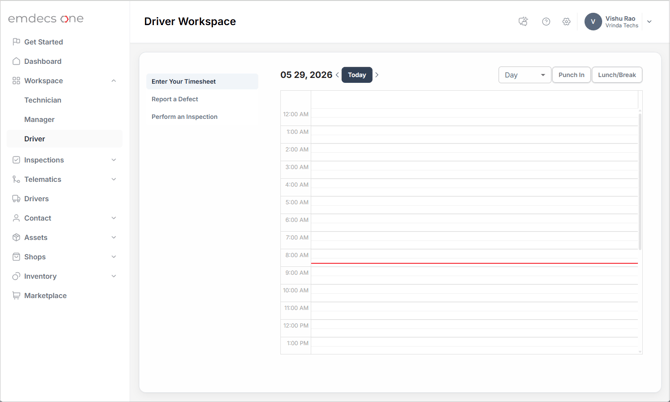
Assuming you've not started your timesheet for the day yet, you'll see the current day with a red line marking the current time and a **Punch In** button in the upper right. When you're ready to begin your day, click that button. Once you've done so the button will change to read **Punch Out**.
You'll then be able to carry on with your day until it's time to punch out (though see the **Tracking lunches and breaks** topic below if you're expected to track those too). Click the Punch Out button when that time comes. The clock will stop for your day and the button will change to read **Punch In** again for the next time you're ready to start work again.
### Tracking lunches and breaks
If your organization wants you to track lunches and breaks, click the **Lunch/Break** button when it is time to start one of those. This starts the clock for your lunch (or break) and changes the button to read **Break Stop**:
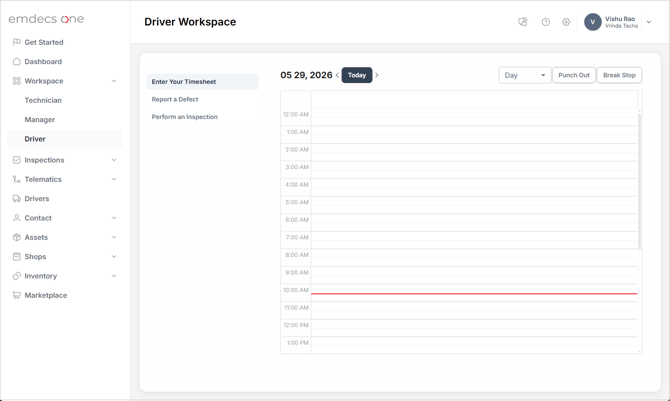
Once you've finished your lunch/break you have two options:
- Likelier is that you're going back to work, so in that case click the **Break Stop** button. This stops the clock on your break and returns **emdecs one** to tracking your work day.
- On the off chance your break finishes at the end of your day you could instead click the **Punch Out** button.
Assuming you're just going back to work, pressing Break Stop marks down your break time on the calendar like this:
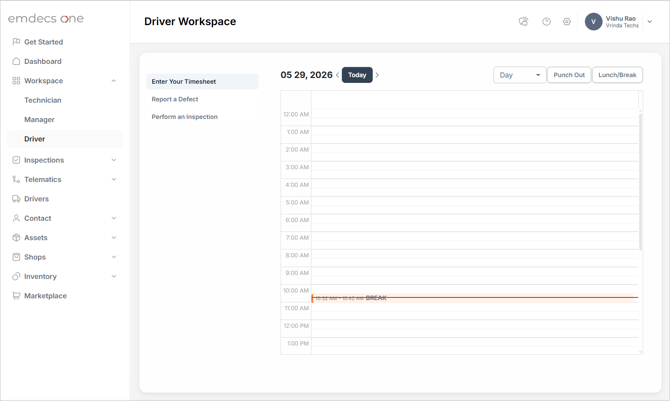
Note that even lunches will be shown as BREAK. Your manager will just tell the difference based on how long it was and when it happened during the day.
- [EMDECS](https://knowledge.brightorder.com/emdecs?hsLang=en#main-content)
- [Getting Started](https://knowledge.brightorder.com/emdecs?hsLang=en#getting-started)
- [How-To Guides](https://knowledge.brightorder.com/emdecs?hsLang=en#how-to-guides)
- [Troubleshooting](https://knowledge.brightorder.com/emdecs?hsLang=en#troubleshooting)
- [Account & User Management](https://knowledge.brightorder.com/emdecs?hsLang=en#account-user-management)
- [Integrations](https://knowledge.brightorder.com/emdecs?hsLang=en#integrations)
- [Release Notes](https://knowledge.brightorder.com/emdecs?hsLang=en#release-notes)
- [emdecs one](https://knowledge.brightorder.com/emdecs-one?hsLang=en#main-content)
- [Maintenance](https://knowledge.brightorder.com/emdecs-one?hsLang=en#maintenance)
- [emdecs one ELD](https://knowledge.brightorder.com/emdecs-one-eld?hsLang=en#main-content)
- [Troubleshooting](https://knowledge.brightorder.com/emdecs-one-eld?hsLang=en#troubleshooting)
- [How-To Guides](https://knowledge.brightorder.com/emdecs-one-eld?hsLang=en#how-to-guides)
- [Getting Started](https://knowledge.brightorder.com/emdecs-one-eld?hsLang=en#getting-started)
- [Account & User Management](https://knowledge.brightorder.com/emdecs-one-eld?hsLang=en#account-user-management)
- [Tracking](https://knowledge.brightorder.com/tracking?hsLang=en#main-content)
- [Getting Started](https://knowledge.brightorder.com/tracking?hsLang=en#getting-started)
- [Troubleshooting](https://knowledge.brightorder.com/tracking?hsLang=en#troubleshooting)
- [How-To Guides](https://knowledge.brightorder.com/tracking?hsLang=en#how-to-guides)
- [Account & User Management](https://knowledge.brightorder.com/tracking?hsLang=en#account-user-management)
- [Integrations](https://knowledge.brightorder.com/tracking?hsLang=en#integrations)
- [ELD](https://knowledge.brightorder.com/eld?hsLang=en#main-content)
- [Release Notes](https://knowledge.brightorder.com/eld?hsLang=en#release-notes)
- [Legacy Device Troubleshooting](https://knowledge.brightorder.com/eld?hsLang=en#legacy-device-troubleshooting)
- [How-To Guides (Legacy Devices)](https://knowledge.brightorder.com/eld?hsLang=en#how-to-guides-legacy-devices)
- [Dashcam](https://knowledge.brightorder.com/dashcam?hsLang=en#main-content)
- [How-To Guides](https://knowledge.brightorder.com/dashcam?hsLang=en#how-to-guides)
- [General](https://knowledge.brightorder.com/general?hsLang=en#main-content)
- [Contact Us](https://knowledge.brightorder.com/general?hsLang=en#contact-us)
- [Getting started](https://knowledge.brightorder.com/getting-started?hsLang=en)
[](https://knowledge.brightorder.com/?hsLang=en)
www.brightorder.com Help Center
[mailto:email@email.com](mailto:email@email.com)
Copyright © 2026, BrightOrder Inc.