---
title: How to report a defect in the web app
description: Step-by-step instructions for a driver to report a defect or problem on a unit or asset
---
[Skip to content](https://knowledge.brightorder.com/how-to-report-a-defect1#main-content)
English
Show submenu for translations
[More support](https://knowledge.brightorder.com/kb-tickets/new?hsLang=en) [Customer portal](https://help.brightorder.com/tickets?hsLang=en)
[](https://knowledge.brightorder.com?hsLang=en)
Open main navigation
Close main navigation
- English
Show submenu for translations
- [More support](https://knowledge.brightorder.com/kb-tickets/new)
- [Customer portal](https://help.brightorder.com/tickets)
- Go to www.brightorder.com
Go to www.brightorder.com
How can we help you?
- There are no suggestions because the search field is empty.
1. [BrightOrder Knowledge Base](https://knowledge.brightorder.com/?hsLang=en)
2. [emdecs one](https://knowledge.brightorder.com/emdecs-one?hsLang=en)
3. [Maintenance](https://knowledge.brightorder.com/emdecs-one?hsLang=en#maintenance)
# How to report a defect in the web app
## If you notice a problem with your truck or trailer outside of your usual inspections, you can log a note of it with emdecs one so that a technician or shop manager can look into it.
Who is this article for? Drivers using **emdecs one**'s web client.
Begin by selecting **Workspace \> Driver** from the menus and then, on the screen that is shown, pick the **Report a Defect** option.
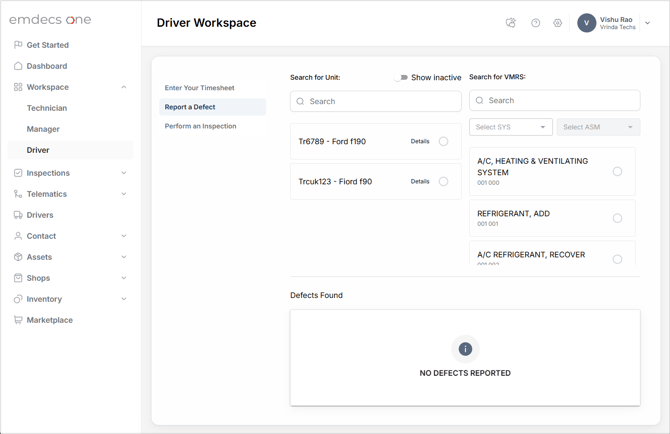
In the **Search for Unit** box, start typing the unit number of the truck or trailer for which you're reporting a problem. As you type, **emdecs one** will home in on assets which match what you've typed, so the one you're looking for will usually appear quite quickly in the list of units below the search box:
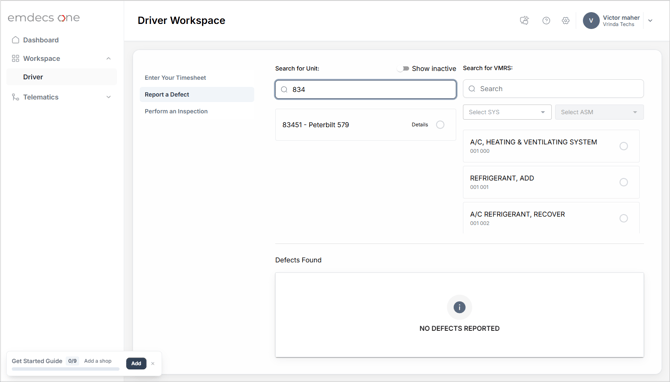
When you see the one you want, click it. This will outline the unit with a thin black border and fill in the circle on the right side of the unit's card, which is **emdecs one** acknowledging that this is the unit you want to work with.
Next you need to specify what it was that you found wrong with the asset. Use the Search for VMRS box to enter a basic description of what is wrong (for example *BRAKES* or *REAR AXLE*). Alternatively, if you happen to know the appropriate VMRS code (continuing from the previous example: *013* for brakes or *022* for the rear axle) you can enter that. Either way, **emdecs one** will start homing in on defects that match what you type.
**NOTE**: Don't worry if you're not sure exactly which code to select. If they need to, a technician can change the code you pick to something else. If nothing else, it's possible that you think the problem is in one place (the rear axle) when it's actually something else (the ABS brakes on that axle) so they need the ability to change the code anyway when the time comes.
When **emdecs one** has homed in enough and you see the VMRS code you want, select it. A popup will appear showing the asset and the VMRS code you selected, and there will be a notes box for you to fill in describing the defect you found.
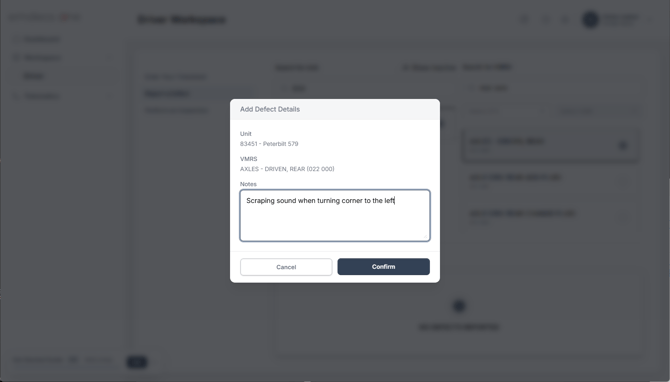
**NOTE**: While strictly speaking you don't have to fill in the notes, ***it's very important to fill this in if you haven't already told the relevant manager or technician what the problem is***. VMRS codes are "wide", so without some kind of explanation it can be difficult for others to find the issue you encountered with the asset.
Once you've filled in the notes, click the Confirm button. This adds the defect to the Defects Found area at the bottom of the screen. Anything listed here will be visible to the next person repairing this unit:
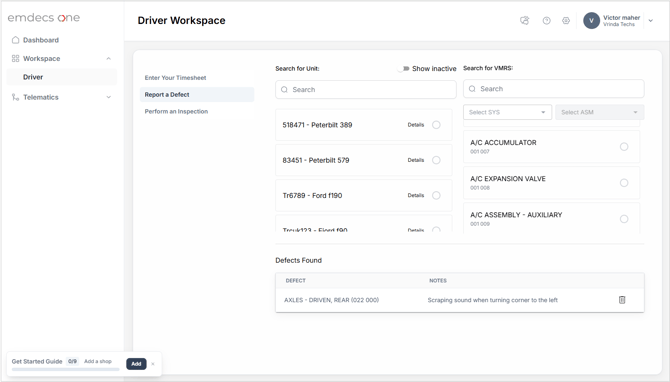
If you want, you can then add more defects as many times as you like—just repeat the process above.
**NOTE**: After reporting one defect, if you want to report another ***you need to search for and select the unit again***. It's common to be reporting defects for more than one unit (usually because you've got both a tractor and a trailer) so **emdecs one** does not assume that the second, third, fourth, and so on defects are all for the unit that had the first defect you reported. If you find that you select a VMRS code and the notes popup does not appear, it's almost definitely because you didn't select your unit.
- [EMDECS](https://knowledge.brightorder.com/emdecs?hsLang=en#main-content)
- [Getting Started](https://knowledge.brightorder.com/emdecs?hsLang=en#getting-started)
- [How-To Guides](https://knowledge.brightorder.com/emdecs?hsLang=en#how-to-guides)
- [Troubleshooting](https://knowledge.brightorder.com/emdecs?hsLang=en#troubleshooting)
- [Account & User Management](https://knowledge.brightorder.com/emdecs?hsLang=en#account-user-management)
- [Integrations](https://knowledge.brightorder.com/emdecs?hsLang=en#integrations)
- [Release Notes](https://knowledge.brightorder.com/emdecs?hsLang=en#release-notes)
- [emdecs one](https://knowledge.brightorder.com/emdecs-one?hsLang=en#main-content)
- [Maintenance](https://knowledge.brightorder.com/emdecs-one?hsLang=en#maintenance)
- [emdecs one ELD](https://knowledge.brightorder.com/emdecs-one-eld?hsLang=en#main-content)
- [Troubleshooting](https://knowledge.brightorder.com/emdecs-one-eld?hsLang=en#troubleshooting)
- [How-To Guides](https://knowledge.brightorder.com/emdecs-one-eld?hsLang=en#how-to-guides)
- [Getting Started](https://knowledge.brightorder.com/emdecs-one-eld?hsLang=en#getting-started)
- [Account & User Management](https://knowledge.brightorder.com/emdecs-one-eld?hsLang=en#account-user-management)
- [Tracking](https://knowledge.brightorder.com/tracking?hsLang=en#main-content)
- [Getting Started](https://knowledge.brightorder.com/tracking?hsLang=en#getting-started)
- [Troubleshooting](https://knowledge.brightorder.com/tracking?hsLang=en#troubleshooting)
- [How-To Guides](https://knowledge.brightorder.com/tracking?hsLang=en#how-to-guides)
- [Account & User Management](https://knowledge.brightorder.com/tracking?hsLang=en#account-user-management)
- [Integrations](https://knowledge.brightorder.com/tracking?hsLang=en#integrations)
- [ELD](https://knowledge.brightorder.com/eld?hsLang=en#main-content)
- [Release Notes](https://knowledge.brightorder.com/eld?hsLang=en#release-notes)
- [Legacy Device Troubleshooting](https://knowledge.brightorder.com/eld?hsLang=en#legacy-device-troubleshooting)
- [How-To Guides (Legacy Devices)](https://knowledge.brightorder.com/eld?hsLang=en#how-to-guides-legacy-devices)
- [Dashcam](https://knowledge.brightorder.com/dashcam?hsLang=en#main-content)
- [How-To Guides](https://knowledge.brightorder.com/dashcam?hsLang=en#how-to-guides)
- [General](https://knowledge.brightorder.com/general?hsLang=en#main-content)
- [Contact Us](https://knowledge.brightorder.com/general?hsLang=en#contact-us)
- [Getting started](https://knowledge.brightorder.com/getting-started?hsLang=en)
[](https://knowledge.brightorder.com/?hsLang=en)
www.brightorder.com Help Center
[mailto:email@email.com](mailto:email@email.com)
Copyright © 2026, BrightOrder Inc.