Who is this article for? Shop Managers and Technicians using emdecs one's web client.
IMPORTANT NOTE: For the MOTOR tab to function properly the work order's asset must have a valid Vehicle Identification Number (VIN) entered into emdecs one. MOTOR uses the VIN to determine what kind of vehicle it is and then bring back appropriate repair items to select. If the VIN is missing or entered incorrectly, the MOTOR tab will not show items for you to select when you search for them!
All labour on a work order is added using the Add Labour button on the main work order screen:
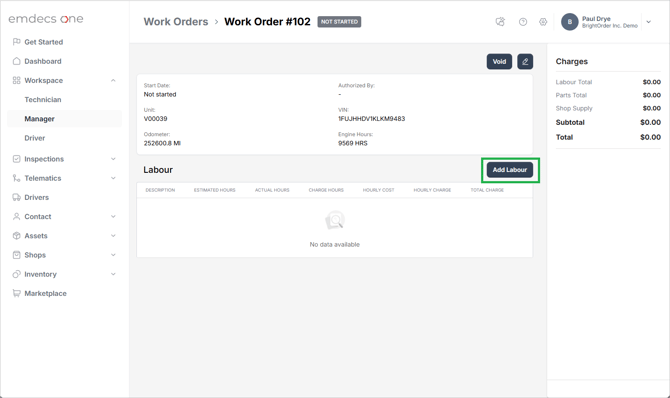
If you click it and the MOTOR integration is installed in your emdecs one, you'll see a MOTOR tab as an option to pick. When available it is usually selected by default, but if not you can select it now:
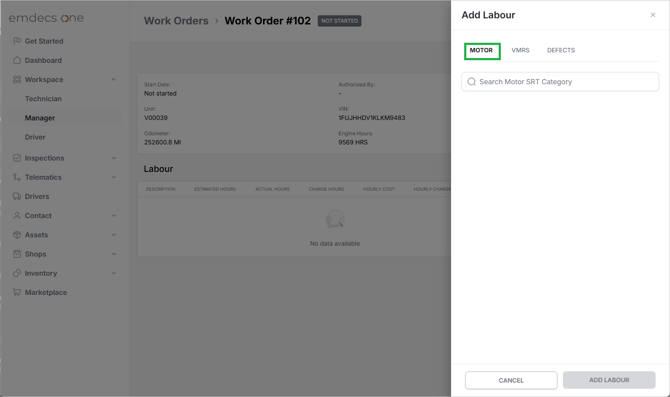
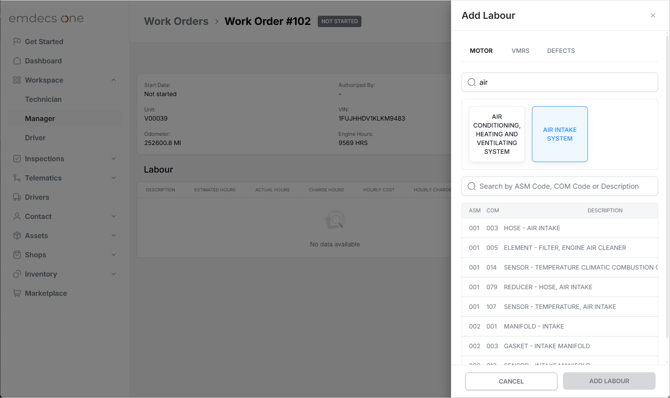
The next step is to use the Search Motor SRT Category box to type some or all of the work that you'd like to do on the asset. Start with a description of the part of the vehicle you'll be working on, for example brakes. As you type, emdecs one will home in on general categories of repair that match what you type.
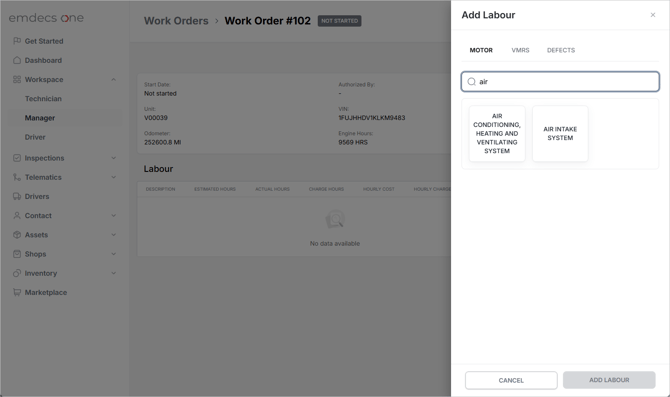
Clicking a category will then let you search for a specific repair (or other work) by either
- Description, or
- VMRS code
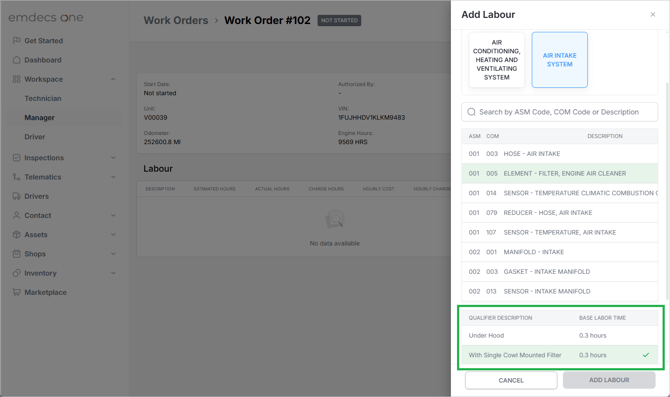
Selecting one of the suggested codes will sometimes (though not always) ask you to qualify the work you will be doing as is highlighted in the next screenshot. This helps narrow things down a little further so that a more accurate estimated time is given:
The final step is to then specify the Work Accomplished, which is to say will you be Repairing, Cleaning, Inspecting, or any of a number of other possibilities. Click in the Select Accomplish Criteria field to see a list of them:
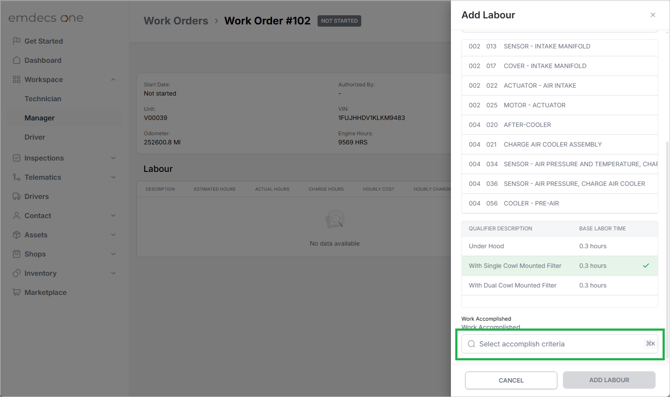
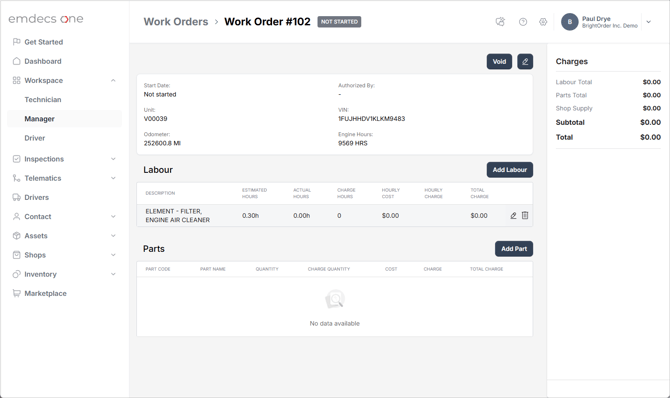
Once you finish selected the work accomplished, the Add Labour button will activate. Click it to add your labour line to the work order. Once that's done, it will look something like this: