
Who is this article for? Fleet Managers
This task depends on there being Preventive Maintenance schedules already set up in emdecs one. If this hasn't been done yet, you should create them first.
Once that's done, select Maintenance > Programs from the menus. You'll be shown a list of existing programs, if any:
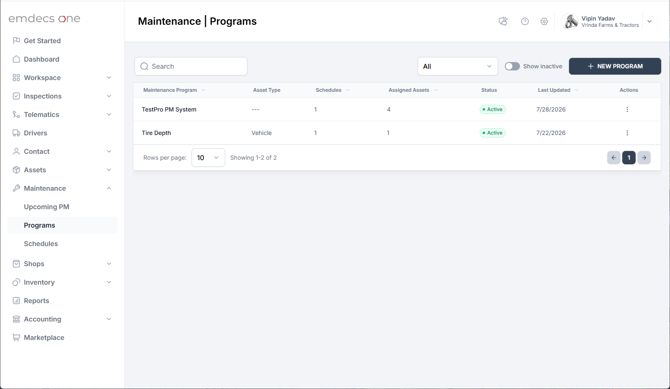
A program is a group of one or more schedules that can be assigned to an asset. For example, unit 81853 is a make and model that requires:
- A DOT inspection every year
- A tire inspection every 50,000 kilometers
- Changing the wiper blades every 180 days
- Checking and possibly replacing the oil every 40,000 kilometers
That's four distinct schedules, so a program bundles them up and makes them easier to assign to this unit (and others of the same make and model) in one shot.
To create a new program, click the New Program button. You'll be shown this screen:
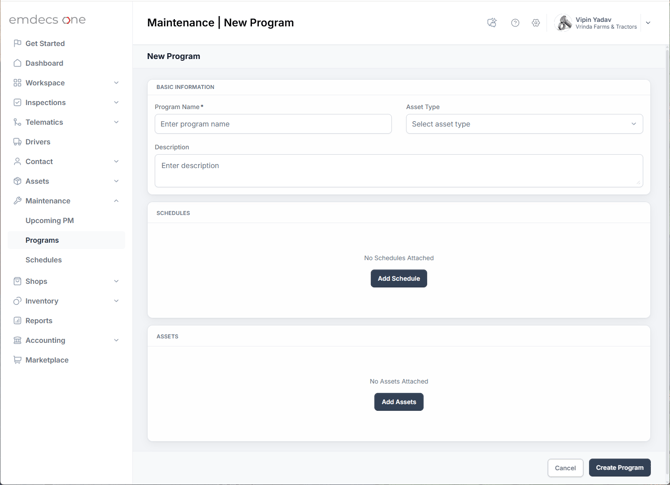
First you'll need to enter a Name for the program and select the Asset Type it applies to (either a vehicle or a trailer). You can also add any description you think is necessary, but that's optional.
Next click the Add Schedule button so you can select from among the schedules created previously:
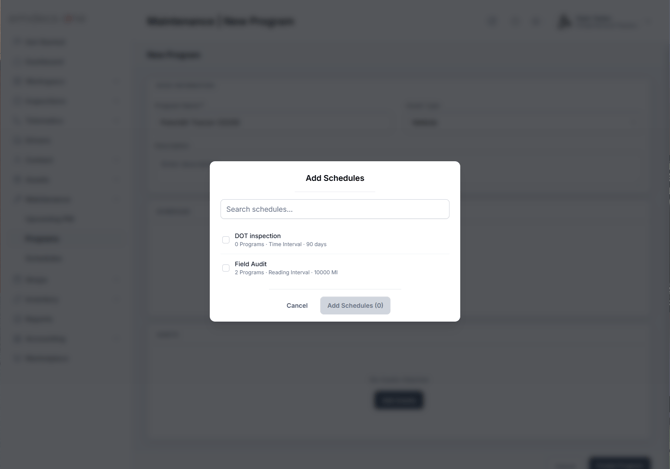
Select as many as you like and then click the Add Schedules button. You'll be returned to the main Programs screen and shown a list of what you added:
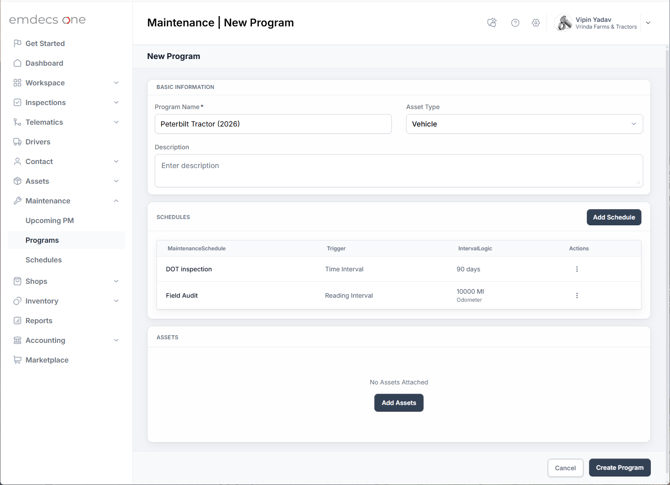
Next you'll want to assign this new program to the assets (vehicles or trailers) that will be following these schedules. Click the Add Assets button to do this:
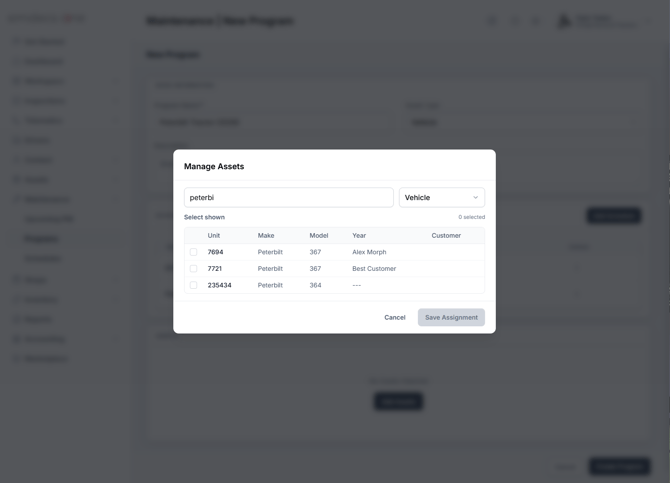
Select as many of these as you like. If there are many units set up in emdecs one, you can use the search box to narrow the list and/or pick a vehicle type to filter that way. Note that even though schedules and programs have an asset type tied to them (either Vehicle or Trailer) you can override that and pick assets of the opposite type if you think it's appropriate.
Also note that you can use this popup as many times as you like for one program. Each time you use it you can add more units, and the ones you pick this time will be added cumulatively to the program with the ones you picked before.
When you're ready, click the Save Assignment button to add the selected assets to the program. This returns you to the main New Program screen, now updated to show those assets as having this program and its set of schedules lined up for them:
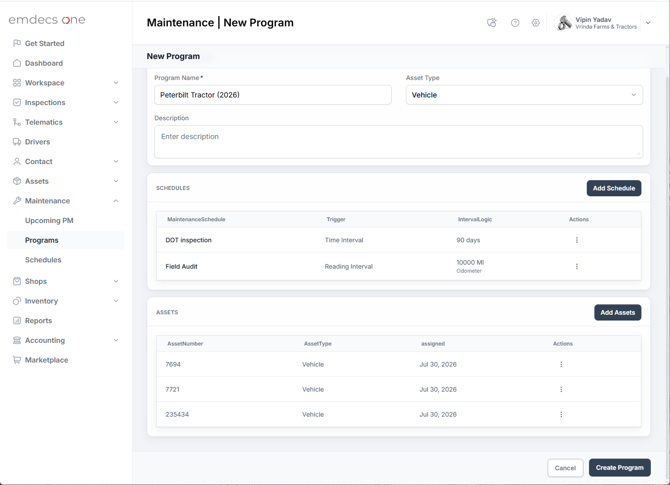
Now that you've got everything set up , click the Create Program button. This will show an overview screen for your program and you're free to move on to any other task in emdecs one that you'd like to do next.
Creating the program will also silently arrange for all of the assets you selected to be watched. If a reading is entered for a unit or a certain amount of time passes, any relevant intervals in the schedule will be checked. If a schedule is triggered, the work and inspections it contains will be lined up on that asset so that it can be seen the next time a work order is created for that asset and the technician assigned to that work order looks to see what their tasks are.