
Who is this article for? Accountants or Admins responsible for accounting events in emdecs one.
Begin by selecting Accounting > Mapping from the menus and then selecting the Global default tab. On the screen that shows you should see a green status stating Connected ⋅ QuickBooks Online. If you don't you or someone with Super Admin privileges in emdecs one will need to install the QBO integration first.
Once connected, you'll see this screen:
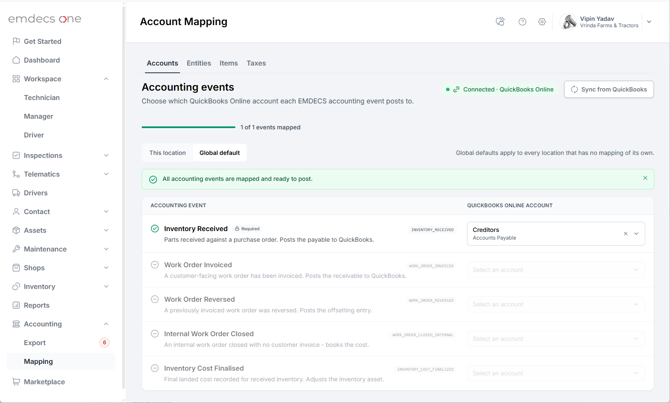
Some or all mappings may already be showing, as emdecs one tries to auto-map as soon as the integration is installed. If you use QBO's default accounts and have set up taxes in both QBO and emdecs one, you may see a green note reading All accounting events are mapped and ready to post. If that's the case all you need to do is double-check that emdecs one has used the correct QBO account. If one if not right you have the option of clicking on its name in the Quickbooks Online Account column at the right and selecting a different account.
Repeat this process for the Items and Taxes tabs, plus configure your customers so that you can generate reports and (if desired) invoices from within QBO.
Adding Location-Specific Overrides
If you have more than one repair location and any of them use a different account for a transaction type than the one shown here in the Global default tab, you can override the mappings for that location.
To do this, selecting Accounting > Mapping from the menus and then selecting the This location tab. You'll see basically the same screen as was discussed above, with the main difference being a repair shop selector shown here highlighted in blue:
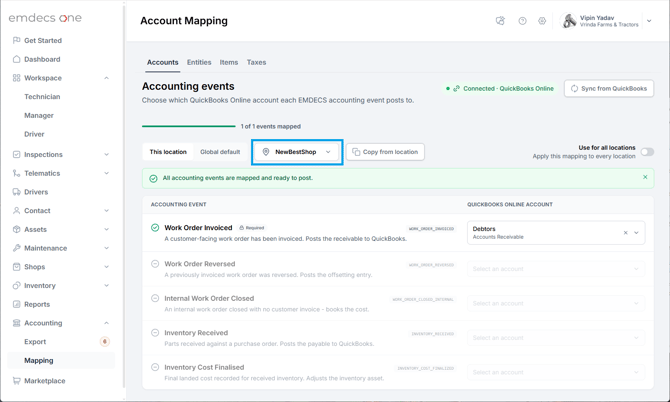
Click it to show a list of your repair shops and pick the one you'd like to work with. For each transaction ("Accounting Event") you can select an account in QBO which will be used only when that kind of transaction occurs at this one location. All other locations will continue to use the Global account set instead.
As before, repeat this process on the Entities and Taxes tabs, if any of those things need overridden too.
Note that if this location is using some of the default Global accounts on some transactions, you don't have to set them up here too. If there's no override set up here, then this location continues to use the default. All you have to do is set up the accounts that are different for this location.