
Who is this article for? An accounting or super admin user looking to validate their customer & vendor setup.
Begin by selecting Accounting > Mapping > from the menus, clicking the Entities tab, and then the Global default sub-tab. On the screen that shows you should see a green status stating Connected ⋅ QuickBooks Online. If you don't you or someone with Super Admin privileges in emdecs one will need to install the QBO integration first.
Once connected, you'll see something like this:
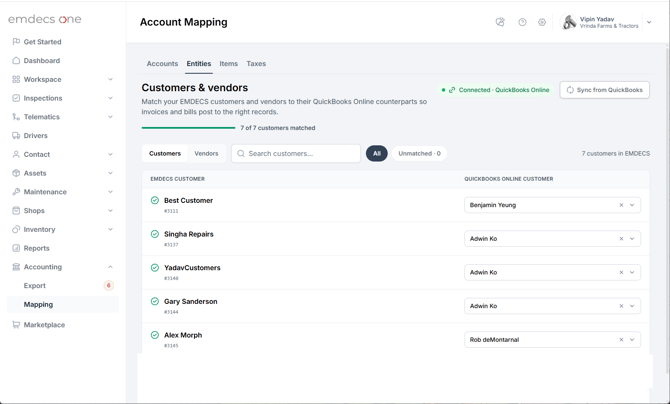
With any luck you'll see that all of your customers are already mapped. To tell if this is so, look at the X of X customers matched indicator. If the two numbers are the same, you're done!
If the numbers don't match, it means some could not be found in QuickBooks Online—usually because the name over there is slightly different from the one entered into emdecs one. To deal with these, click the Unmatched - X choice to filter the list down to just the ones where there was a problem.
For each of these the name as it is in emdecs one will be shown on the left and on the right in the QuickBooks Online Customer column there will be a drop-down control you can click to see your list of customers as named in QBO. Scroll or search until you find the one that matches and select it. Repeat this process for all of the unmatched customers.
Once you've checked on and then, if necessary, mapped your customers, select the Vendors subtab to see a list of all your vendors. Repeat the validation and manual mapping process described for Customers in here too.