
Who is this article for? Super Admins using emdecs one's web client.
Begin by selecting the Shops > Warehouses item from the left-hand menu bar. This will show you a list of all the shops that have already been set up. If this is the first shop being added to emdecs one, the list will be empty.
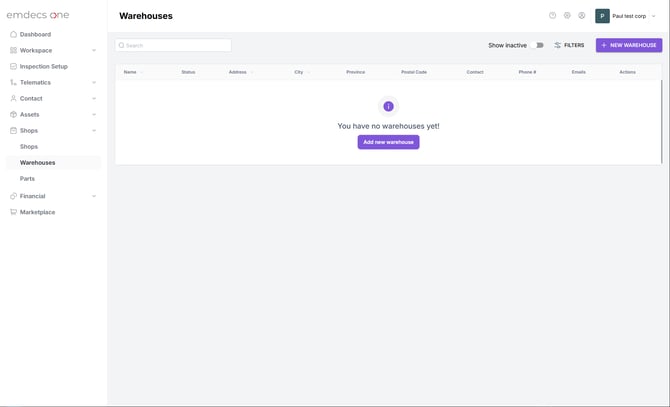
Click the New Warehouse button. This opens a blank form for you to fill in the warehouse's information:
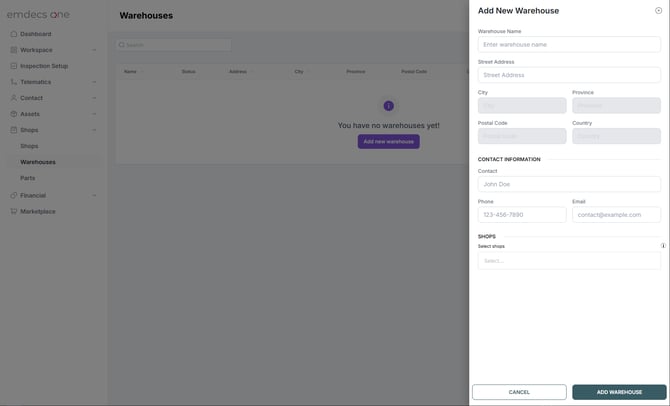
There are two fields that you should fill in, though one of them can be left until later:
- Warehouse Name: This should be the name of the warehouse as the techs or other employees who put away and draw parts from it know it. If you don't have a distinct warehouse you can always re-use the name of your shop.
- Shops: When a part is received at a shop, or a work order at that shop uses a part, emdecs one will update the on-hands count for that part in the warehouse. You'll want to select every shop (repair location, for example, or mobile repair truck) that this warehouse supplies. You can leave this for later, especially if you haven't set up your warehouses yet, but keep in mind that emdecs one will not be able to track your inventory until you select them. NOTE: As a convenience, you're also able to select shops from the screen where warehouses are set up. and that will automatically fill in this field for you too.
The rest of the fields are optional, and you can fill them in depending on whether or not you think it will be useful to have their information on-hand in the system:
- Street Address: The address of the warehouse, if it has one. As with other address fields in emdecs one, you'll just need to type part of the address; as you type it will home in on matching addresses throughout the world. Once the address you're looking for appears, you can select it and emdecs one will fill in the City, Postal/ZIP Code. and Country fields for you. If it's appropriate for your country, it will also fill in the Province/State.
- Contact Info: If there are employees who won't necessarily be located at the street address of the warehouse, you can enter a contact person and phone number so that those employees can get in touch with the warehouse easily. Likewise you can supply the contact person's email address for times when the need to contact them is not urgent.
Once you've filled in the all the information you'd like to fill in for now, click the Add Warehouse button to finish setting it up.