
Who is this article for? Admin users.
While emdecs one has default settings for notifications already, you can customize these based on your employees' needs. To do this, begin by clicking the Settings icon (the gear in the corner of the screen) and then from the Settings menu that appears on the left-hand side of the screen selecting Alert Rules. You'll be shown this set of options:
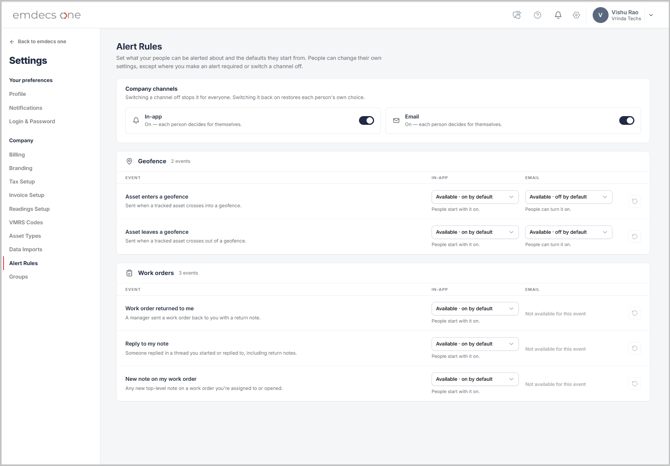
Company Channels
This option lets you activate or deactivate particular ways that employees can be notified. Employees then can set up notifications in the channels you allow.
- In-app: popups that appear within emdecs one itself
- Email: notifications are sent to the email address the user uses to sign in to the system.
Note: If you turn a channel on, it doesn't make that kind of notification mandatory. It just lets users decide whether or not to use that channel. However, if you turn a channel off, all users have that kind of notification removed, even if they had set it up to be used prior to you turning it off. If you have turned a channel off but then turn it back on at a later time, their personal settings will be restored.
Default Settings
Defaults are set for each of the categories of notification available and for individual events that can trigger notifications. These are:
- Geofence notifications
- Vehicle or other asset entering a geofence
- Vehicle or other asset leaving a geofence
- Work order notifications
- Work order returned to a user
- Note written by that user has a reply
- New note has been created on a work order by a user other than the user being notified (e.g., a manager adds a note to a work order assigned to a technician).
For each type of notification you can use the dropdown options associated with that notification line:
- In-app is ON/OFF by default
- Email is ON/OFF by default
If you've turned off a channel, that channel's ON/OFF option will be deactivated and you won't be make selections for that channel. Similarly, not all channels can be used by all notification events. If that's the case, unavailable channels will also be deactivated.