
Who is this article for? A shop manager or admin who wants to fix a mismatch with a part quantity.
Begin by selecting Inventory > Adjustments from the menu. You'll be shown this screen, which is a historical record of all the adjustments ever made in emdecs one—you can use this for auditing purposes at a later time:
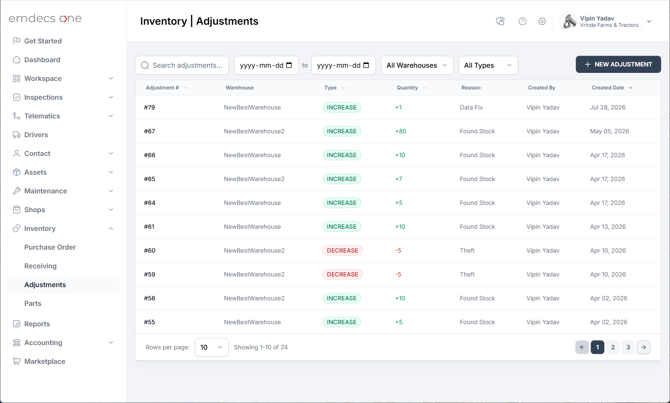
To make an adjustment, click the New Adjustment button to see this screen:
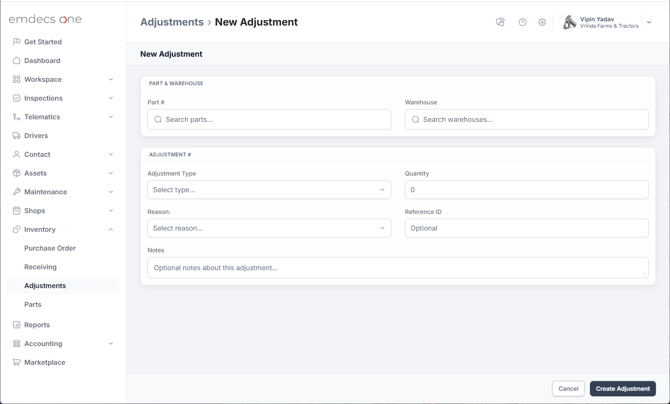
You'll need to fill in five mandatory pieces of information:
- The Part Number in question
- The Warehouse where the quantity mismatch is happening
- The Adjustment Type: are you increasing or decreasing the quantity that emdecs one thinks you have?
- Quantity: the amount you're increasing (or decreasing) the quantity on-hand by
- The Reason why the discrepancy occurred, for example Theft, Damage, or (if it's just that someone typed in a parts receiving wrong) Data Fix. If you don't know, you can use the Other choice.
There are also a few other items that you can fill in if you think they'd be useful to know later:
- A Reference ID: this would be the purchase order/receiving being corrected, or if you're doing a physical count and you number those you could put it here.
- There's also a Notes field for anything else you'd like to say.
Once you've filled in everything you need, click the Create Adjustment button to save your work. At this point the quantity on hand will be adjusted in emdecs one's inventory. You'll also be returned to the main Adjustment screen and an entry for the adjustment you just made will be added to it.