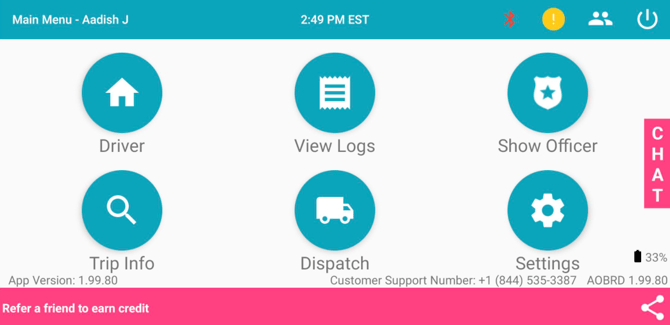
Once a driver has the login details from the office, they can use the following steps to login to the emdecs one ELD application.
-
Click on the emdecs one ELD icon on the tablet or phone where it's been set up. Note: if the driver has a custom emdecs one ELD tablet then as soon as the tablet is powered on the login page appears.
-
Enter your Username and Password in the box shown below.
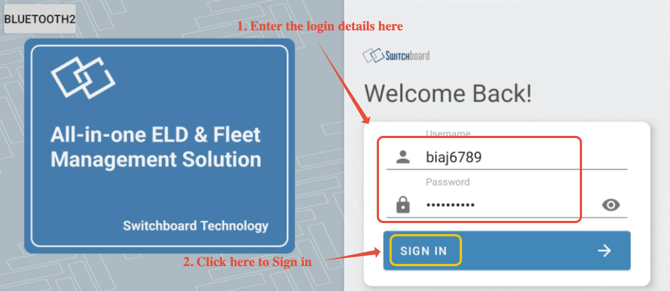
-
You will be shown the page where you can select your vehicle and trailers, and enter the shipment ID.
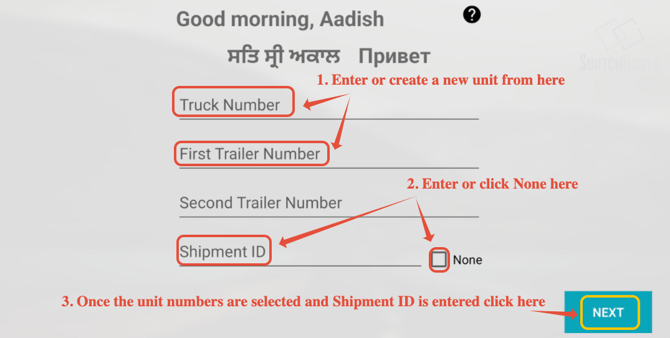
To create a new unit number from the driver's app, you can click on the truck unit number or the trailer unit number, so a page shows up to create/ add the new unit. Please see the image below. - Once the Truck number, trailer number, and shipment Id are entered then you can scan to connect the Engine module. The scan will show the ELD modules available, the name should start with PT30. You should tap on the one you are using, then tap FINISH.
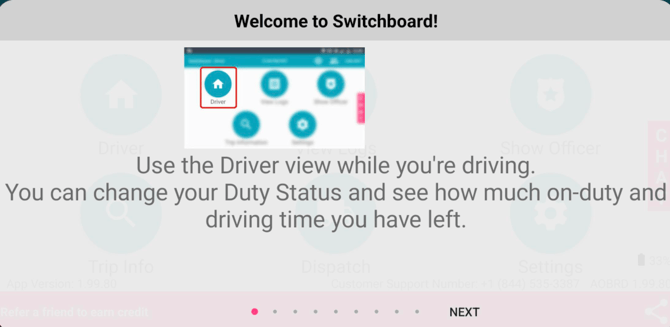
- Once you are connected to the engine module and if this is the first time you have ever signed in then the application guide opens up to show the driver how to navigate through different options. Please check the image below.
- As soon as you are finished reading the guide the main page will be shown, with all its tabs. This will be the first screen you see every time you sign in from now on.