---
title: Manager Workspace Overview
description: An overview of how a shop manager will use the Manager Workspace screen to manage work orders in emdecs one
---
[Skip to content](https://knowledge.brightorder.com/manager-workspace-overview#main-content)
English
Show submenu for translations
[More support](https://knowledge.brightorder.com/kb-tickets/new?hsLang=en) [Customer portal](https://help.brightorder.com/tickets?hsLang=en)
[](https://knowledge.brightorder.com?hsLang=en)
Open main navigation
Close main navigation
- English
Show submenu for translations
- [More support](https://knowledge.brightorder.com/kb-tickets/new)
- [Customer portal](https://help.brightorder.com/tickets)
- Go to www.brightorder.com
Go to www.brightorder.com
How can we help you?
- There are no suggestions because the search field is empty.
1. [BrightOrder Knowledge Base](https://knowledge.brightorder.com/?hsLang=en)
2. [emdecs one](https://knowledge.brightorder.com/emdecs-one?hsLang=en)
3. [Maintenance](https://knowledge.brightorder.com/emdecs-one?hsLang=en#maintenance)
# Manager Workspace Overview
## Shop managers have a special-purpose screen that gives them an overview of the work orders for their shop that has been lined up, is being worked on, or has recently been completed. This is an overview of how it works.
Who is this article for? Shop Managers using **emdecs one**'s web client.
Your workspace will show if you select **Workspace \> Manager** after signing in to **emdecs one**:
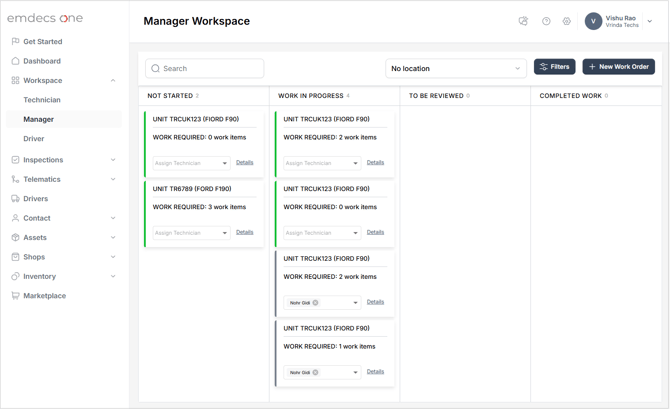
The basic concept is that work orders begin on the left in the **Not Started** column (either because you or a tech created one in your workspace, or because an estimate has been approved and turned into a work order) and work their way to the right until they are completed.
The **Work in Progress** column shows work orders where a technician has begun work on an asset but has not yet finished. Note that this includes both the work order for the current asset they are working on, as well as any other work orders that they've worked on but that have had to be put aside for whatever reason (for example, if he's been pulled onto their current work order because it's high priority and he'll be returning to a previous work order to complete it once that high priority issue is dealt with).
Once a technician has indicated that a work order is finished by marking it as *Unit Ready* in their workspace, it will move into your workspace's **To Be Reviewed** column. Any work order here is waiting for you to look over its details and either invoice it (or just close it if invoicing is not appropriate for that asset's owner) or send it back to the technician to correct a problem. If you send it back, that work order will be moved into your Work in Progress column until the tech marks it *Unit Ready* again.
Finally the **Completed Work** column shows you work orders that have been invoiced or closed within the last 24 hours, so you can look at it quickly rather than having to use the history screen where older work orders are shown.
- [EMDECS](https://knowledge.brightorder.com/emdecs?hsLang=en#main-content)
- [Getting Started](https://knowledge.brightorder.com/emdecs?hsLang=en#getting-started)
- [How-To Guides](https://knowledge.brightorder.com/emdecs?hsLang=en#how-to-guides)
- [Troubleshooting](https://knowledge.brightorder.com/emdecs?hsLang=en#troubleshooting)
- [Account & User Management](https://knowledge.brightorder.com/emdecs?hsLang=en#account-user-management)
- [Integrations](https://knowledge.brightorder.com/emdecs?hsLang=en#integrations)
- [Release Notes](https://knowledge.brightorder.com/emdecs?hsLang=en#release-notes)
- [emdecs one](https://knowledge.brightorder.com/emdecs-one?hsLang=en#main-content)
- [Maintenance](https://knowledge.brightorder.com/emdecs-one?hsLang=en#maintenance)
- [emdecs one ELD](https://knowledge.brightorder.com/emdecs-one-eld?hsLang=en#main-content)
- [Troubleshooting](https://knowledge.brightorder.com/emdecs-one-eld?hsLang=en#troubleshooting)
- [How-To Guides](https://knowledge.brightorder.com/emdecs-one-eld?hsLang=en#how-to-guides)
- [Getting Started](https://knowledge.brightorder.com/emdecs-one-eld?hsLang=en#getting-started)
- [Account & User Management](https://knowledge.brightorder.com/emdecs-one-eld?hsLang=en#account-user-management)
- [Tracking](https://knowledge.brightorder.com/tracking?hsLang=en#main-content)
- [Getting Started](https://knowledge.brightorder.com/tracking?hsLang=en#getting-started)
- [Troubleshooting](https://knowledge.brightorder.com/tracking?hsLang=en#troubleshooting)
- [How-To Guides](https://knowledge.brightorder.com/tracking?hsLang=en#how-to-guides)
- [Account & User Management](https://knowledge.brightorder.com/tracking?hsLang=en#account-user-management)
- [Integrations](https://knowledge.brightorder.com/tracking?hsLang=en#integrations)
- [ELD](https://knowledge.brightorder.com/eld?hsLang=en#main-content)
- [Release Notes](https://knowledge.brightorder.com/eld?hsLang=en#release-notes)
- [Legacy Device Troubleshooting](https://knowledge.brightorder.com/eld?hsLang=en#legacy-device-troubleshooting)
- [How-To Guides (Legacy Devices)](https://knowledge.brightorder.com/eld?hsLang=en#how-to-guides-legacy-devices)
- [Dashcam](https://knowledge.brightorder.com/dashcam?hsLang=en#main-content)
- [How-To Guides](https://knowledge.brightorder.com/dashcam?hsLang=en#how-to-guides)
- [General](https://knowledge.brightorder.com/general?hsLang=en#main-content)
- [Contact Us](https://knowledge.brightorder.com/general?hsLang=en#contact-us)
- [Getting started](https://knowledge.brightorder.com/getting-started?hsLang=en)
[](https://knowledge.brightorder.com/?hsLang=en)
www.brightorder.com Help Center
[mailto:email@email.com](mailto:email@email.com)
Copyright © 2026, BrightOrder Inc.