
Who is this article for? Technicians using emdecs one's web client.
Your workspace will show if you select Workspace > Technician after signing in to emdecs one:
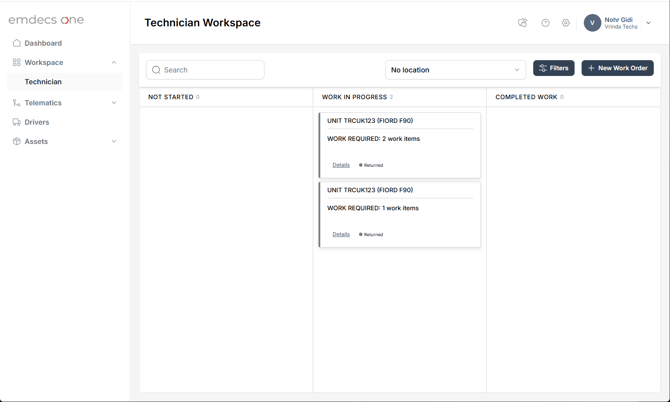
The basic concept is that work orders begin on the left in the Not Started column. These will be ones you created in your workspace, that your manager has assigned to you, or because an estimate has been approved and turned into a work order. None of them have had any work done on them yet, not by you or by any other technician. These work orders then travel to the right until they are completed.
The Work in Progress column shows work orders where you've work on an asset but not yet finished. Note that this includes both the work order for the current asset you're working on, as well as any other work orders that you've worked on but that have had to be put aside for whatever reason (for example, if you were pulled onto another current work order because it's high priority and you'll be returning to a previous work order to complete it once that high priority issue is dealt with).
When you finish a work order, you mark it as Unit Ready. This moves it into your workspace's Completed Work column. It will also be sent to the shop manager for them to review. Assuming all goes well, it will stay in your Completed Work for 24 hours, so you can quickly look it up again if you need to.
Note that your manager may send Completed Work back to you instead! There's something about it that they'd like you to fix, so it moves back into your Work in Progress. Opening it will let you read the notes they've added to the work order and, once you've corrected the issue, you can Unit Ready it again.