
Who is this article for? Fleet Managers
Creating a Schedule
The first thing you need to do is define when preventive maintenance is needed. emdecs one can handle two main triggers for maintenance:
- By reading: primarily odometer readings, but also engine hours and others
- By time: for example, maintenance can be triggered every 90 days
You can have a particular set of maintenance work trigger on one or the other of these criteria, on both but whichever comes first.
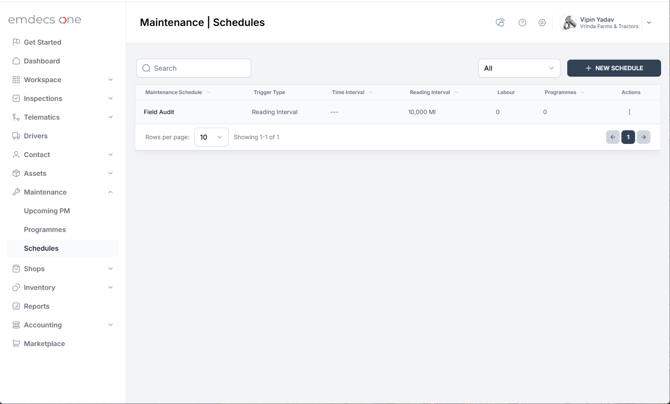
Begin by selecting Maintenance > Schedules from the menus. You'll be shown a list of existing schedules, if any, like so:
Click the New Schedule button to see this screen:
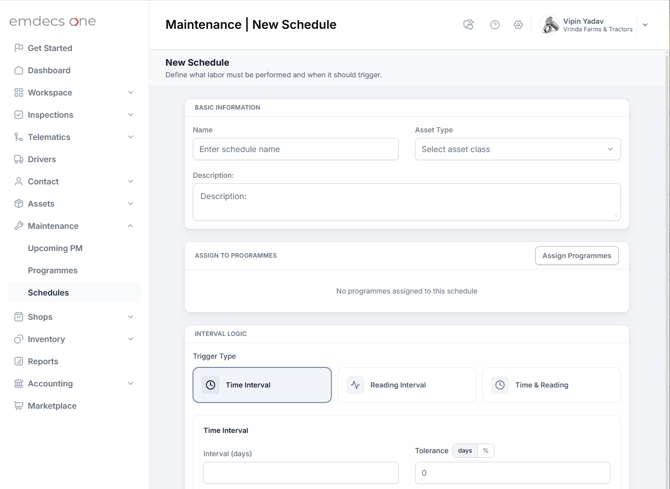
You'll need to enter:
- A Name for the schedule
- An Asset Type (whether this schedule is used by vehicles or trailers)
- A Trigger Type: either time (in days), reading, or both time & reading (whichever comes first)
Time Trigger Type
If you select the Time trigger type you'll then be asked to enter a Time Interval, which is the number of days that the PM work will need to be done after the last time it was done, ideally. You'll also need to enter a tolerance since ideal timing isn't always needed. These can be in number of days too, or as a percentage of the main time interval.

For example, if 90 days is the ideal time interval and I select days for my tolerance set to 5, then the PM work will be added to the list of things to do on the next work order for the unit if 85 to 90 days have passed. On the other hand if it's 90 days with a 10% interval I would use the % option for the Tolerance and end up with the work being triggered at 81-90 days.
Reading Trigger Type
If you select the Reading trigger type, the PM will be added when a reading value is approached or reached. This is set up with this panel on the screen:
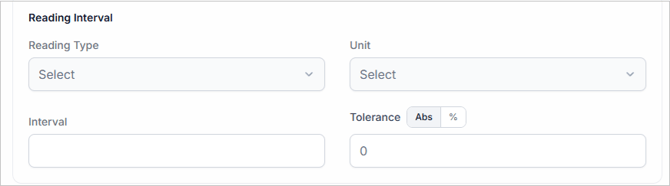
For this kind of trigger you'll need to enter:
- A Reading Type from the options odometer, hubdometer, engine hours, and PTO (power take-off) hours
- The Unit in which the reading is to be read: hours, miles, or kilometers
- The Interval: This can be any round number of hours/miles/kilometers when the PM work ideally should be added to the asset after the last time this work was done.
- Tolerance: Unless you need to do the work exactly at the ideal reading, this adds some room to when the work needs to trigger. If you use the Abs option, enter the amount the reading can differ. For example, if my reading and interval are 50,000 and miles, and Abs tolerance of 5,000 will add the work to the asset when the reading is between 45,000 and 50,000 miles.
If you use the % option instead, enter the percentage of the main interval you'd like emdecs one to calculate on the fly when it decides if work should be added. We could get the same result as before with 50,000 and miles by entering 10%: the result would be 45,000 to 50,000 miles.
Time & Reading Trigger Type
Setting up this kind of trigger is the same as the two other trigger types described above. The only difference is that you'll need to fill in one of each rather than only one.
Labour
The second and final thing you need to do is is to tell emdecs one what one or more pieces of work need to be done for this preventive maintenance to be completed.
VMRS tasks
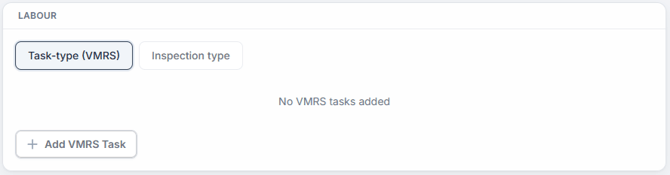
If you select Task Type (VMRS) then click the Add VMRS Task button, you'll be shown the same popup as you are when adding labour to a work order. Pick a task and it will be added to the schedule. You can add as many of these as you like. emdecs one will list them as you add them.
Inspections
Sometimes the work is just an inspection that needs to be done. If you select the Inspection type option will show a dropdown to select from:
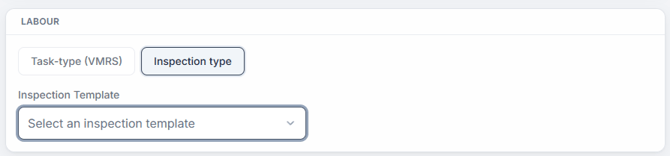
Your choices in here will be both the inspection forms that emdecs one knows right out of the box as well as any custom ones that you or someone else in your organization have set up.
Again, you can select as many of these as you like.
You can also line up both kinds of item, labour and inspections, in the same schedule of PM work.
When you're done entering all the necessary information, click the Create Schedule button.