
Who is this article for? Shop Managers using emdecs one's web client.
Create an Open PO
Begin by selecting the Financial > Purchase Order item from the left-hand menu bar. This will show you a list of all the purchase orders that have been created. If this is the purchase order you've ever created in emdecs one, the list will be empty.
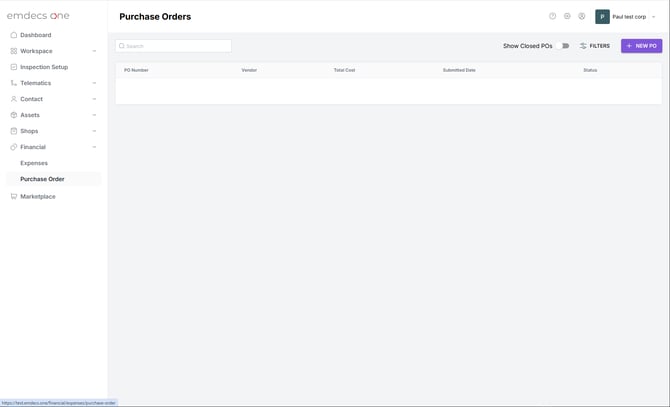
Click the New PO button. This opens a blank form for you to fill in the purchase order's basic information:
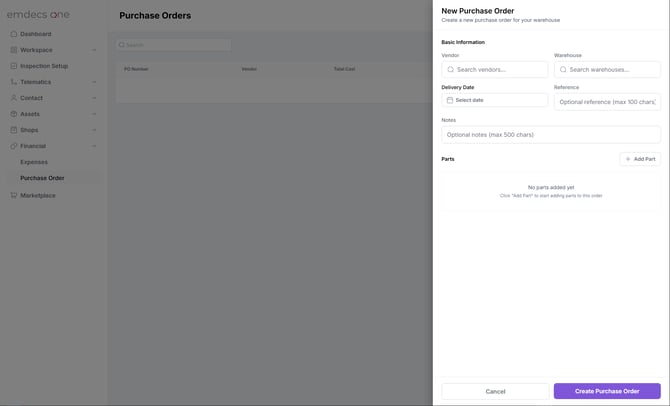
There are two fields you must fill in:
- Vendor: Select from the parts vendors that have been set up in emdecs one. Clicking on this field will show you some example vendors, so if you don't have many companies you buy from, the one you are looking for may already be visible for you to select.
If it's not immediately visible, start typing their name and emdecs one will home in on matching vendors. If the vendor you want is still not listed, you'll need to back out from this screen and set it up first. - Warehouse: Parts purchased will eventually end up in one of your parts warehouses. Click here to see a list of all warehouses. If your company is big enough that you have many possible warehouses you can start typing its name and emdecs one will start narrowing down the list with matches. When you see the warehouse you want, click it.
There are also three optional fields where you can supply information you or another employee might need later:
- Delivery Date: If the vendor gives you a delivery date (or even an approximate one) you can enter it here.
- Reference: Likewise, if the vendor has given you a reference number or something similar (such as a tracking number) you can put it in here.
- Notes: This field is for any other information that you think might be useful. It's completely free-form, so you can put anything here: instructions to the person who receives the parts, extra information the vendor gave you, and so on.
If you like, you can be done now: clicking the Create Purchase Order button now creates an open PO that you can fill up with parts as needed. This can be handy if, for whatever reason, you want to build up an order over the course of a few days. You might want to do this so that you can wait until you exceed a dollar threshold for free shipping, for example.
Sooner or later you'll need to include some parts in the order, as explained in the next part of this tutorial.
Adding Parts to the PO
This is where the Add Part button comes in. If you click it, emdecs one will add some new fields to the purchase order:
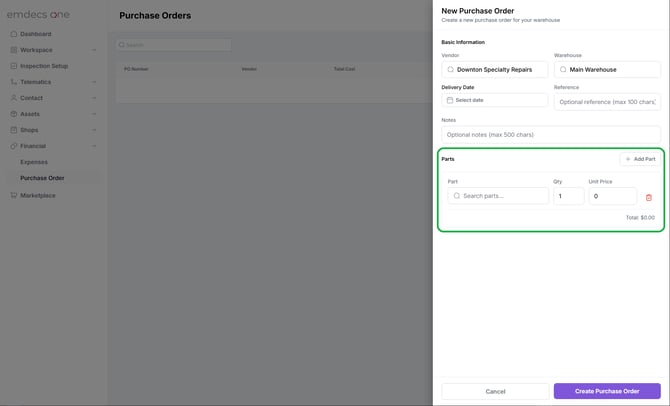
Add a part by filling in these three fields:
- Part: Click here and emdecs one will show you a list of all the parts it knows. This is probably a very long list, so start typing either the part name or part number. As you type, emdecs one will home in on parts that match what you've typed so far. Once the part you want is shown, you can select it. Note that if you can't get the part you want to appear, it means that that part isn't in the system yet. You'll need to back out of this screen for a minute and go set it up.
- Quantity: An order of 1 of the part is assumed, but if you want more than that you can enter that in the Qty field.
- Unit Price: Whatever the vendor is charging you for this part, per unit.