
Who is this article for? Fleet managers and shop managers
emdecs one lets you set up schedules and add them to maintenance programs so that assets (vehicles and trailers) get appropriate maintenance work lined up when they're scheduled for it. It then uses this information to produce a report for you of what's needing to be done soon.
To see it, select Maintenance > Upcoming PM from the menu. You'll be shown something like this:
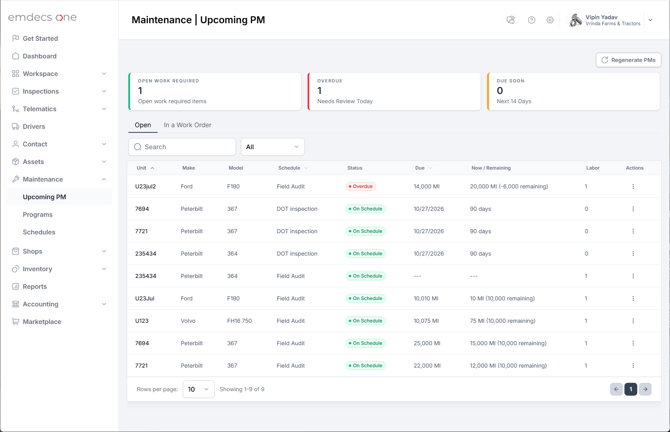
At the top is a quick overview showing you:
- Open work required: The number of units that have hit the tolerance window for some PM work, but that haven't gone overdue just yet. The work will be available to techs select if they work on a work order for that unit.
- Overdue: The number of units that have had their PM open for too long and are now over the limit of their tolerance. You'll need to consider what to do about these units, such as red-tagging them.
- Due soon: The number of units that are within 14 days of some PM work being due.
Under this header is a detailed list of what's coming up. Highlights here are:
- A status which makes it clear which assets are overdue, etc.
- At what point the work will be due, in either reading or time (or "whichever comes first"). If the asset is needing work but not yet overdue these will be indicated with a triple-dash symbol: ———
- What the current reading/time on that asset is and how much more there is to go until the PM work will be triggered
- How many labour items there are to be done when the PM triggers. This does not include inspections, so the count may show as zero if that's the only thing to be done.
Regenerating PMs
Schedules are checked only periodically and not every second of every day. If you have reason to believe that a schedule's set-up has been changed in the last several hours, or units have been added or moved around from program to program, you can force emdecs one to recheck all of your units just in case.
To do this, click the Regenerate PMs button. This may then take a while to complete depending on how many assets and how many programs/schedules you have. A message saying PM regeneration completed will pop up when the rechecking is done.