---
title: "Cloudhawk: Using Asset Labels"
description: Labels are a great way to categorize your fleet. For example, differentiating between trucks, trailers, reefers, dry vans, or other types of equipment. This allows you to quickly see only specified labelled trackers on the live map at the same time.
---
[Skip to content](https://knowledge.brightorder.com/using-asset-labels#main-content)
English
Show submenu for translations
[More support](https://knowledge.brightorder.com/kb-tickets/new?hsLang=en) [Customer portal](https://help.brightorder.com/tickets?hsLang=en)
[](https://knowledge.brightorder.com?hsLang=en)
Open main navigation
Close main navigation
- English
Show submenu for translations
- [More support](https://knowledge.brightorder.com/kb-tickets/new)
- [Customer portal](https://help.brightorder.com/tickets)
- Go to www.brightorder.com
Go to www.brightorder.com
How can we help you?
- There are no suggestions because the search field is empty.
1. [BrightOrder Knowledge Base](https://knowledge.brightorder.com/?hsLang=en)
2. [Tracking](https://knowledge.brightorder.com/tracking?hsLang=en)
3. [How-To Guides](https://knowledge.brightorder.com/tracking?hsLang=en#how-to-guides)
# Cloudhawk: Using Asset Labels
## Labels are a great way to categorize your fleet. For example, differentiating between trucks, trailers, reefers, dry vans, or other types of equipment. This allows you to quickly see only specified labelled trackers on the live map at the same time.
Who is this article for? Standalone Tracking customers.
*Note*: Tracking integration within **emdecs one** is currently partial. Some portal features are only accessible through the standalone Tracking portal. Where noted, follow the standalone steps.
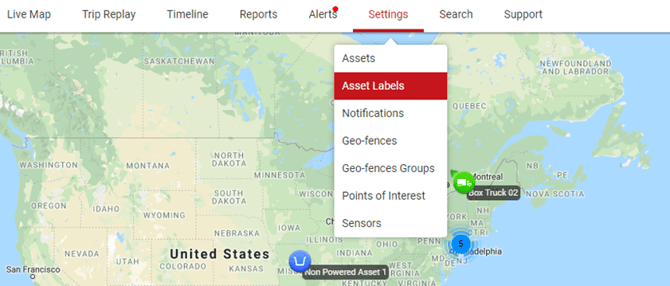
Hover your cursor over **Settings** on the top navigation bar and click **Asset Labels**.
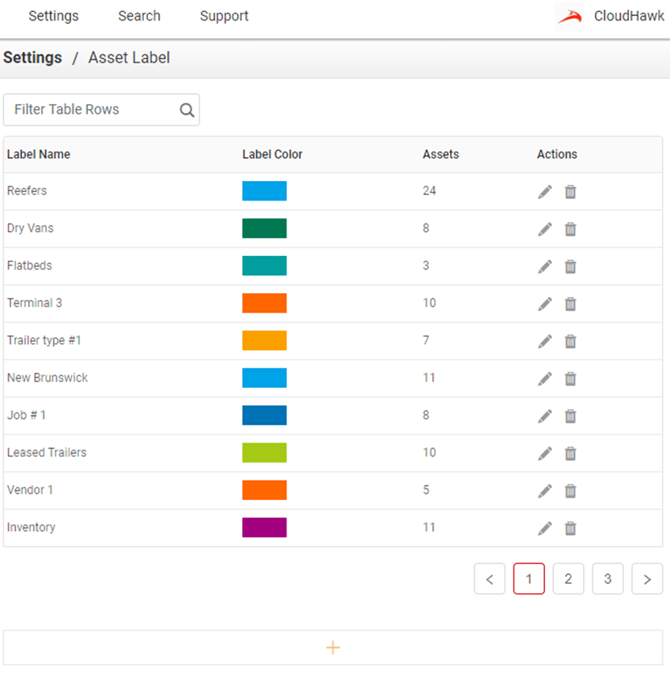
Click the **+** button to create a new label or click the **pencil** icon beside an existing label to edit it.
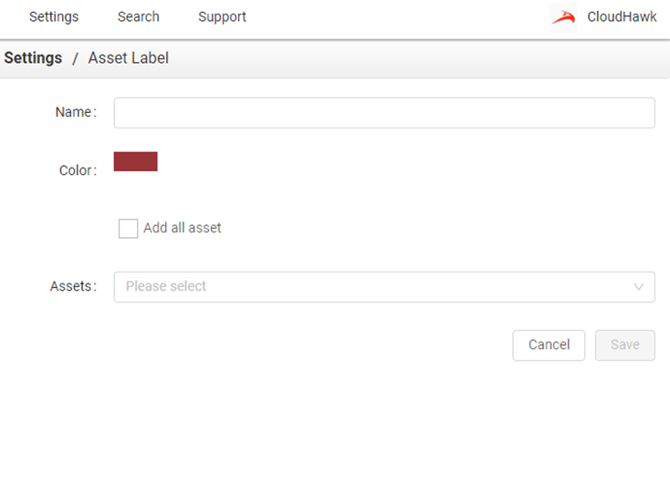
In this window you can create and customize your label. You can select a name, colour, and select which trackers you would like to include in the label. By clicking **Add all asset**, you can quickly add all of your units to the label. When you're done, click **Save.**
****
- [EMDECS](https://knowledge.brightorder.com/emdecs?hsLang=en#main-content)
- [Getting Started](https://knowledge.brightorder.com/emdecs?hsLang=en#getting-started)
- [How-To Guides](https://knowledge.brightorder.com/emdecs?hsLang=en#how-to-guides)
- [Troubleshooting](https://knowledge.brightorder.com/emdecs?hsLang=en#troubleshooting)
- [Account & User Management](https://knowledge.brightorder.com/emdecs?hsLang=en#account-user-management)
- [Integrations](https://knowledge.brightorder.com/emdecs?hsLang=en#integrations)
- [Release Notes](https://knowledge.brightorder.com/emdecs?hsLang=en#release-notes)
- [emdecs one](https://knowledge.brightorder.com/emdecs-one?hsLang=en#main-content)
- [Maintenance](https://knowledge.brightorder.com/emdecs-one?hsLang=en#maintenance)
- [emdecs one ELD](https://knowledge.brightorder.com/emdecs-one-eld?hsLang=en#main-content)
- [Troubleshooting](https://knowledge.brightorder.com/emdecs-one-eld?hsLang=en#troubleshooting)
- [How-To Guides](https://knowledge.brightorder.com/emdecs-one-eld?hsLang=en#how-to-guides)
- [Getting Started](https://knowledge.brightorder.com/emdecs-one-eld?hsLang=en#getting-started)
- [Account & User Management](https://knowledge.brightorder.com/emdecs-one-eld?hsLang=en#account-user-management)
- [Tracking](https://knowledge.brightorder.com/tracking?hsLang=en#main-content)
- [Getting Started](https://knowledge.brightorder.com/tracking?hsLang=en#getting-started)
- [Troubleshooting](https://knowledge.brightorder.com/tracking?hsLang=en#troubleshooting)
- [How-To Guides](https://knowledge.brightorder.com/tracking?hsLang=en#how-to-guides)
- [Account & User Management](https://knowledge.brightorder.com/tracking?hsLang=en#account-user-management)
- [Integrations](https://knowledge.brightorder.com/tracking?hsLang=en#integrations)
- [ELD](https://knowledge.brightorder.com/eld?hsLang=en#main-content)
- [Release Notes](https://knowledge.brightorder.com/eld?hsLang=en#release-notes)
- [Legacy Device Troubleshooting](https://knowledge.brightorder.com/eld?hsLang=en#legacy-device-troubleshooting)
- [How-To Guides (Legacy Devices)](https://knowledge.brightorder.com/eld?hsLang=en#how-to-guides-legacy-devices)
- [Dashcam](https://knowledge.brightorder.com/dashcam?hsLang=en#main-content)
- [How-To Guides](https://knowledge.brightorder.com/dashcam?hsLang=en#how-to-guides)
- [General](https://knowledge.brightorder.com/general?hsLang=en#main-content)
- [Contact Us](https://knowledge.brightorder.com/general?hsLang=en#contact-us)
- [Getting started](https://knowledge.brightorder.com/getting-started?hsLang=en)
[](https://knowledge.brightorder.com/?hsLang=en)
www.brightorder.com Help Center
[mailto:email@email.com](mailto:email@email.com)
Copyright © 2026, BrightOrder Inc.